
AI in Practice: Build Your First AI-Powered Google Workspace Automation
From Google Sheets to Gemini and Back — A Practical Introduction to AI Automation
What if your spreadsheet could do more than store information? What if it could help you summarize notes, organize tasks, and create useful drafts with AI?
Most people use Google Sheets to collect, organize, and calculate data. But combine Google Sheets with Google Apps Script and Gemini, and you can start building something much more powerful: an AI-assisted workflow that processes information and helps you get work done.
The exciting part? You don’t need to build a complicated application to get started.
In this edition of AI in Practice, we’ll explore how Gemini and Google Apps Script work together, learn the basic building blocks of an AI-powered automation, and walk through a simple project you can try yourself.
I’ve also created an interactive learning resource called the Gemini Apps Script Lab, where you can explore the entire process with guided lessons, response experiments, and a downloadable starter project.
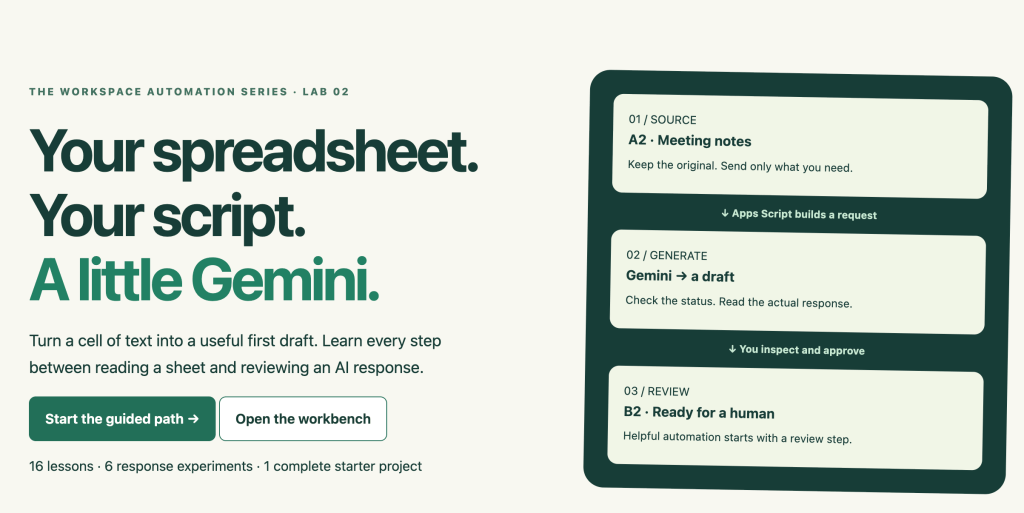
🔗 Explore the free interactive guide:
https://discoveryvip.com/gemini-apps-script-lab
1. Why Combine Gemini with Google Apps Script?
Let’s start with a simple distinction.
Google Apps Script automates actions. Gemini helps process and generate content.
Google Apps Script is a JavaScript-based platform that connects with Google Workspace applications, including Google Sheets, Docs, Gmail, Drive, and Calendar.
You can use Apps Script to read spreadsheet data, create documents, organize files, and automate repetitive tasks.
Gemini adds another capability: working with natural language.
Instead of relying entirely on fixed rules, your application can ask an AI model to summarize information, extract useful details, or generate a first draft.
Consider the difference:
Traditional automation:
- Read a spreadsheet cell.
- Copy its contents somewhere else.
- Apply predefined formatting.
- Save the result.
AI-assisted automation:
- Read a spreadsheet cell.
- Send the text to Gemini with clear instructions.
- Receive a suggested summary or structured response.
- Review the output.
- Write the approved draft into another cell.
The difference is significant.
Your automation is no longer limited to moving data. It can help interpret and transform information.
But there is an important principle to understand:
AI-generated content should be treated as a draft, not an automatically verified fact.
That principle is central to building reliable AI workflows.
2. Let’s Build a Simple Example: Meeting Notes to Summary
Imagine you’re working on a project and have meeting notes stored in a spreadsheet.
Your notes might say:
“Alex will finish the website design by Friday. The marketing team will review the landing page next week. The release date has not been confirmed.”
You want a short summary that highlights the important information without introducing anything that wasn’t in the original notes.
Normally, you’d read the notes, identify the key points, and write a summary yourself.
With Apps Script and Gemini, you can create a workflow that prepares that summary for your review.
Here’s what the process looks like:
Step 1 — Read the source
Apps Script reads the meeting notes from cell A2 in Google Sheets.
Step 2 — Build an instruction
Your script combines the notes with a prompt that tells Gemini exactly what to do.
Step 3 — Send the request
Apps Script uses an HTTP request to communicate with the Gemini API.
Step 4 — Inspect the response
Your script checks whether the request succeeded and whether Gemini returned usable text.
Step 5 — Review the draft
You check the generated summary against the original meeting notes.
Step 6 — Save the result
After confirmation, the draft is written into cell B2.
This small workflow demonstrates the foundation of many useful AI applications.
And once you understand it, you can adapt the same pattern to other tasks.
3. The Secret to Better AI Automation Is Better Prompts
One of the most important lessons in working with AI is that the quality of your instructions influences the usefulness of the output.
Consider this prompt:
“Summarize this.”
It might produce something useful, but it leaves many questions unanswered.
How long should the summary be? What information matters? Should the AI include dates? What happens when information is missing?
Now consider a more structured instruction:
Example prompt:
“Summarize the following meeting notes in three concise bullet points. Highlight confirmed actions, responsible people, and deadlines. Use only information found in the source text. Do not invent missing details. If a deadline is unknown, clearly state that it is unconfirmed.”
Notice the difference?
We’ve defined the task, format, constraints, and expectations.
This is an important skill when developing AI-powered workflows.
A useful prompting framework is:
Task + Context + Format + Rules
- Task: What should the AI accomplish?
- Context: What information does it need?
- Format: How should the result be presented?
- Rules: What should the AI avoid or verify?
The more clearly you define these elements, the easier it becomes to evaluate whether the AI delivered what you needed.
Try this: Take a vague prompt you use regularly and rewrite it using these four elements. Compare the results.
4. Understanding What Happens Behind the Scenes
You don’t need to become an API expert overnight, but understanding the basic communication process is extremely valuable.
When Apps Script communicates with Gemini, several things happen.
First, the script prepares a request containing your instructions and source information.
Next, the request is sent to the Gemini API using a service such as UrlFetchApp.
The API processes the request and returns a response.
Your script then needs to inspect that response before using the generated text.
This last step is especially important.
Not every API response contains a successful answer.
Requests can fail because of authentication problems, usage limits, service availability, or invalid input. A successful connection can also return content that doesn’t match your expectations.
A reliable automation should check the response status, inspect its structure, and confirm that usable content exists.
Only then should it proceed.
This is the difference between a quick AI experiment and a workflow you can begin to depend on.
5. Why Human Review Still Matters
Here’s a mistake that’s easy to make when first building AI automations:
Assuming that because Gemini generated an answer, the answer must be correct.
AI models can misunderstand instructions, omit important context, or introduce details that were never provided.
For example, if your original notes say:
“The team will discuss the launch date next week.”
An unreliable summary might incorrectly turn that into:
“The launch is scheduled for next week.”
Those statements mean very different things.
A well-designed automation should preserve uncertainty and give you an opportunity to inspect the result.
For our spreadsheet project, this means keeping the original text in A2 and placing the reviewed AI draft in B2.
That creates a simple but important safeguard.
You can compare the original with the generated output and decide whether it’s ready to use.
The goal isn’t to remove people from every process. It’s to reduce repetitive work while keeping people responsible for important decisions.
6. Five Practical Ideas You Can Build with Gemini and Apps Script
Once you understand the basic pattern, you can begin exploring other useful applications.
1. Meeting notes summarizer
Turn lengthy meeting notes into concise summaries. Highlight action items, decisions, and unresolved questions.
2. Customer response assistant
Read a customer inquiry and generate a polite reply draft using approved company information. Review the draft before sending anything.
3. Task extraction tool
Process project notes and identify tasks, owners, and deadlines. Mark missing information as unknown rather than guessing.
4. Content planning assistant
Use spreadsheet entries containing topics and ideas to generate outlines, descriptions, or suggested social media posts.
5. Feedback organizer
Analyze non-sensitive survey responses and suggest recurring themes or categories that you can review.
Each of these examples follows a similar pattern:
Collect → Prompt → Generate → Validate → Review → Use
You don’t have to build five separate systems from scratch.
Learn the pattern once, then adapt it to the problem you’re solving.
7. Three Mistakes to Avoid When Starting
Before connecting AI to every spreadsheet in your workspace, there are a few practical lessons worth understanding.
Mistake #1: Automating too much too soon
Start with one cell and one task.
Make sure you understand how the information moves through the process before expanding to hundreds of rows.
Mistake #2: Ignoring failures
An API request isn’t guaranteed to succeed.
Your script should handle errors gracefully, check for missing responses, and avoid overwriting useful data.
Mistake #3: Treating AI output as final
Generated text should be reviewed before it’s used in customer communications, business decisions, or other important situations.
Also, avoid sending confidential or personal information to an external AI service without appropriate authorization and privacy safeguards.
Reliable automation is about more than generating results quickly. It’s about knowing what happened, recognizing when something failed, and retaining control over the output.
8. Learn by Doing: Explore the Gemini Apps Script Lab
Reading about AI automation is useful. Experimenting with it makes the concepts much easier to understand.
That’s why I created the Gemini Apps Script Lab on DiscoveryVIP.
https://discoveryvip.com/gemini-apps-script-lab
The lab provides a guided learning experience that takes you from understanding the connection between Google Sheets, Apps Script, and Gemini to exploring a practical starter project.
Inside the lab, you’ll find:
- 16 guided lessons to help you understand the workflow.
- 6 response experiments to explore different API response scenarios.
- An interactive request workbench where you can build prompts and inspect simulated responses.
- A complete starter project for connecting Google Sheets to Gemini using Apps Script.
- A downloadable Apps Script starter and learning handbook to help you continue independently.
One feature I particularly like is the interactive workbench.
You can experiment with prompt structure, inspect a request payload, examine example API responses, and see how information moves through the workflow.
The browser practice environment uses labeled simulations rather than making live Gemini requests, so you can explore it without an API key.
When you’re ready to move beyond practice, the downloadable starter provides a path to running an actual Gemini request in Google Apps Script. That stage requires appropriate API access and authorization, and usage charges may apply.
The goal is to help you understand not just what the automation produces, but how and why each part works.
9. Your Learning Challenge: Start with One Cell
Here’s a small challenge you can complete as you work through the guide.
Your objective: Create a simple workflow that transforms meeting notes into a useful summary.
Start by opening the lab:
https://discoveryvip.com/gemini-apps-script-lab
Follow the guided learning path and explore the request workbench.
Try changing the instructions to request a shorter summary, a different output format, or a list of action items.
Examine the request payload and the example response scenarios. Remember that the workbench uses fixed response examples, so changing your prompt won’t generate a new live AI answer.
Then explore the downloadable starter project to understand how the same process connects to a real Google Sheet.
As you learn, ask yourself:
What information am I sending? What do I expect to receive? How will I know whether the result is correct?
These three questions will help you design better AI workflows long after you’ve completed your first project.
10. The Bigger Picture: Learning to Work with AI
We’re entering a period where the ability to work effectively with AI is becoming increasingly useful across many professions.
But learning AI doesn’t have to mean mastering every new model, framework, or programming library.
Sometimes the best approach is to start with a problem you already understand.
A spreadsheet full of meeting notes.
A repetitive reporting task.
A collection of customer questions.
An administrative process that takes too much time.
Then ask:
How could AI help me accomplish this task more effectively?
That’s where practical learning begins.
It’s also the philosophy behind my approach to Vibe Learning and Vibe Coding: start with curiosity, explore possibilities, build understanding through experimentation, and improve through feedback.
You don’t need to automate everything.
You need to understand how to build one useful solution, evaluate it, and improve it.
From there, the possibilities expand.
Final Thoughts: Build Something Useful This Week
The combination of Google Apps Script and Gemini provides an accessible starting point for experimenting with AI-powered productivity.
You already have familiar tools like Google Sheets. Apps Script provides the automation layer. Gemini provides language-processing capabilities.
Your role is to bring them together thoughtfully.
Start small. Write clear prompts. Inspect responses. Test your assumptions. Keep a human review step.
And most importantly, learn by building.
🚀 Ready to explore?
Gemini Apps Script Lab — Free Interactive Learning Guide
https://discoveryvip.com/gemini-apps-script-lab
Explore more practical development and AI learning guides:
https://discoveryvip.com/guides.php
💬 Let’s Start a Conversation
If you could connect Gemini to one Google Workspace application and automate a task you currently do manually, what would you build first?
Would it be a meeting notes assistant, a content creator, a reporting tool, or something completely different?
Share your ideas in the comments. I’d love to hear what you’re working on.
About the Author
Laurence Lars Svekis is a web developer, online educator, author, and Google Developer Expert specializing in Google Workspace, JavaScript, Apps Script, and practical AI-assisted development. Through DiscoveryVIP and the Vibe Learning framework, he focuses on helping people learn modern technologies through hands-on experimentation and real-world projects.
Subscribe to AI in Practice for practical AI tutorials, tools, experiments, and ideas you can apply to real-world challenges.
https://www.linkedin.com/newsletters/ai-in-practice-7511537011069972480
#AIinPractice #GoogleGemini #GoogleAppsScript #GoogleWorkspace #ArtificialIntelligence #AIAutomation #VibeCoding #VibeLearning #JavaScript #GoogleSheets #LearnAI #GenerativeAI #Productivity #Automation #AItools