
💡 One of the most useful skills you can learn in Google Apps Script is how to process spreadsheet data efficiently.
If you’re automating Google Sheets, understanding the difference between individual cell operations and batch processing can dramatically improve how your scripts perform.
Let’s look at a practical example. 👇
📊 The Problem: Processing Hundreds of Spreadsheet Rows
Imagine you have a Google Sheet containing customer orders.
| Customer | Amount | Status |
|---|---|---|
| John | 150 | Pending |
| Sarah | 275 | Pending |
| Mike | 80 | Pending |
| Lisa | 420 | Pending |
You want to automatically update the status to “High Value” whenever an order is $200 or more.
A common beginner approach is to read and update each spreadsheet cell individually.
That works, but repeated calls to Google Sheets services can make scripts unnecessarily slow.
✅ A Better Approach: Batch Processing
Google Apps Script allows you to read an entire range into a JavaScript array, process the data in memory, and write the results back in one operation.
Here’s a practical example:
function updateOrderStatus() {
  const sheet = SpreadsheetApp
    .getActiveSpreadsheet()
    .getActiveSheet();

  const lastRow = sheet.getLastRow();

  if (lastRow < 2) return;

  const data = sheet
    .getRange(2, 1, lastRow - 1, 3)
    .getValues();

  const statuses = data.map(row => {
    const amount = row[1];

    return [
      amount >= 200
        ? "High Value"
        : "Standard"
    ];
  });

  sheet
    .getRange(2, 3, statuses.length, 1)
    .setValues(statuses);
}
🔍 How Does This Work?
Step 1 — Read the data
getValues() retrieves the spreadsheet data as a two-dimensional JavaScript array.
Step 2 — Process the records
map() processes each row and determines whether the order meets the $200 threshold.
Step 3 — Prepare the results
Each status is returned as a one-element array because setValues() expects a two-dimensional array.
Step 4 — Write the results
setValues() updates the entire status column in a single spreadsheet write operation.
🎯 Why is this better?
Instead of repeatedly communicating with the spreadsheet service, we minimize service calls and perform the calculations using JavaScript.
This technique is especially valuable when working with hundreds or thousands of rows.
⚠️ Important: This example assumes row 1 contains headers, column B contains numeric amounts, and column C is reserved for status values. It replaces existing statuses in that column.
🔥 YOUR TURN: A PRACTICAL CODING CHALLENGE
How would you modify this script to categorize orders into three groups?
🟢 Standard: Below $100
🟡 Medium: $100–$499.99
🔴 High Value: $500 or more
Can you solve this using JavaScript without adding more spreadsheet read or write operations?
💬 Share your approach in the comments!
📚 Want to Learn More Google Apps Script?
I publish practical examples, automation strategies, JavaScript techniques, and Google Workspace development tutorials in my free LinkedIn newsletter.
Google Workspace & Apps Script
👉 Subscribe here:
https://www.linkedin.com/newsletters/google-workspace-apps-script-7029581954001891329/
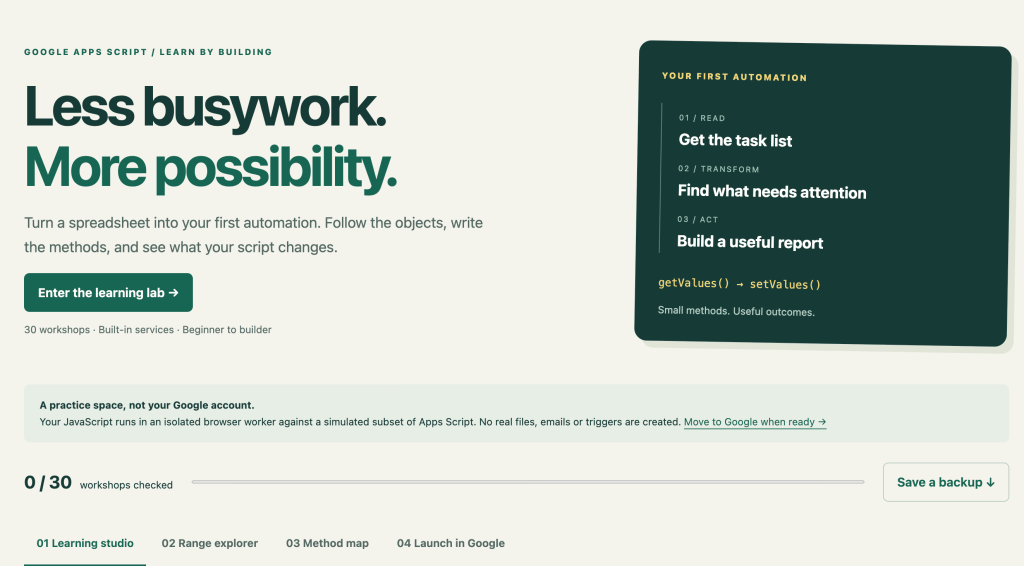
If you’d like to practice these concepts interactively, I’ve also created a free Apps Script Automation Lab with 30 guided workshops.
It provides a simulated environment for practicing Apps Script concepts before applying them to real Google Workspace projects.
🔗 https://discoveryvip.com/apps-script-automation-lab/#studio
💬 LET’S DISCUSS!
What’s the biggest challenge you’ve encountered when automating Google Sheets?
🅰️ Working with ranges and arrays
🅱️ Making scripts run faster
🅲️ Understanding Apps Script services
🅳️ Debugging scripts and handling errors
🅴️ Connecting multiple Google Workspace applications
👇 Comment A, B, C, D, or E — or share an automation problem you’ve been trying to solve.
I’ll use your feedback to help shape future tutorials and examples.
♻️ Share this with someone learning Google Apps Script!
#GoogleAppsScript #GoogleWorkspace #GoogleSheets #JavaScript #Automation #AppsScript #CodingTutorial #GoogleSheetsAutomation #WorkflowAutomation #Productivity #LearnToCode #VibeCoding #DiscoveryVIP