
A practical guide to drawing graphics, creating animations, understanding collision detection, and building interactive browser games with JavaScript.
What if you could turn a blank webpage into an interactive world?
Imagine drawing your own characters, making objects move across the screen, creating animations, detecting collisions, and eventually building a game that someone else can play.
You don’t need expensive software or a complicated game engine to get started.
You can do all of this with two technologies already available in modern browsers:
HTML5 Canvas and JavaScript.
But there’s an important difference between knowing how to draw a rectangle and understanding how to build an interactive game.
Game development combines graphics, mathematics, programming, animation, physics, input handling, and design thinking.
The good news is that these concepts become much easier to understand when you explore them one at a time.
In this guide, we’ll build that understanding from the ground up.
You’ll learn how Canvas works, how to draw and animate objects, why timing matters, how collision detection works, and how to connect these systems into a playable experience.
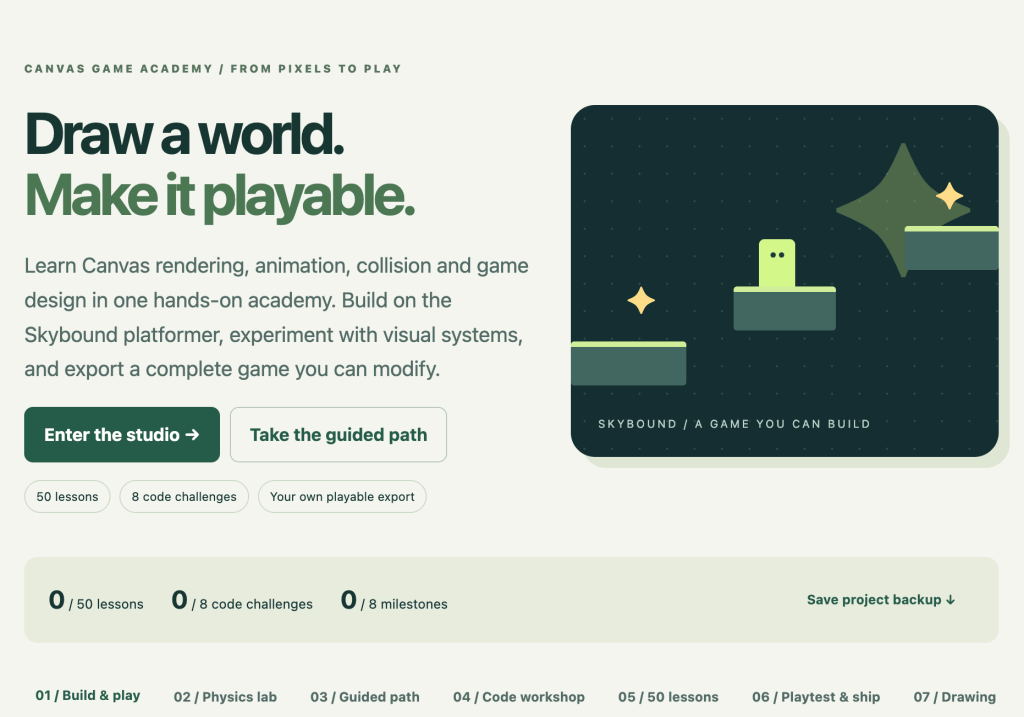
Then I’ll introduce my new Canvas Game Academy, a free interactive learning resource where you can experiment with these concepts and build your own JavaScript platformer.
https://discoveryvip.com/canvas-game-academy/#build
1. What Is HTML5 Canvas, and Why Is It Useful?
HTML5 Canvas is a browser technology that allows JavaScript to draw graphics inside a webpage.
Unlike regular HTML elements, which are individually managed by the browser’s layout system, Canvas gives you a drawing surface that your code controls.
You decide what appears, where it appears, and when it changes.
This makes Canvas useful for:
- Browser games and interactive simulations
- Animations and visual effects
- Data visualizations and charts
- Educational demonstrations
- Drawing applications
- Interactive diagrams and creative coding projects
A Canvas starts with a simple HTML element.
<canvas id="game" width="800" height="450"></canvas>JavaScript then accesses its drawing context:
const canvas = document.getElementById("game");
const ctx = canvas.getContext("2d");
The ctx object provides drawing commands.
For example:
ctx.fillStyle = "#2563eb";
ctx.fillRect(50, 50, 120, 80);
This draws a blue rectangle.
The four numbers represent:
- X position: 50
- Y position: 50
- Width: 120
- Height: 80
The coordinate system begins at the top-left corner.
X increases toward the right.
Y increases toward the bottom.
That coordinate system is one of the first things every Canvas developer should understand.
A useful mental model
Think of Canvas as a blank sheet of paper that JavaScript can redraw whenever necessary.
Unlike a normal webpage, the browser doesn’t automatically maintain separate interactive objects for every shape you draw.
If you want a rectangle to move, your program must track its position, update it, and draw it again.
This distinction becomes essential when building games.
2. Drawing Your First Game World
Most games begin with a collection of simple shapes.
You don’t need detailed character artwork to create a functional prototype.
A rectangle can represent a player.
Another rectangle can represent a platform.
A circle can represent a collectible.
Example: Drawing a simple scene
function drawScene() {
  // Sky
  ctx.fillStyle = "#bfdbfe";
  ctx.fillRect(0, 0, 800, 450);

  // Ground
  ctx.fillStyle = "#16a34a";
  ctx.fillRect(0, 380, 800, 70);

  // Platform
  ctx.fillStyle = "#475569";
  ctx.fillRect(300, 280, 180, 20);

  // Player
  ctx.fillStyle = "#2563eb";
  ctx.fillRect(100, 330, 32, 50);

  // Collectible
  ctx.fillStyle = "#facc15";
  ctx.beginPath();
  ctx.arc(390, 240, 12, 0, Math.PI * 2);
  ctx.fill();
}

drawScene();
This small example introduces several important Canvas commands.
fillRect() draws filled rectangles.
beginPath() starts a new drawing path.
arc() creates a circular arc.
fill() fills the current path.
Notice that we’re using simple geometry to represent meaningful objects.
That’s how many games begin.
The visual appearance can become more sophisticated later.
Practical exercise: Change the platform’s position and add two more collectibles. Try to create a scene that suggests a simple objective.
3. Understanding Drawing Order and Layers
One of the most important Canvas concepts is drawing order.
Canvas uses a painter-style rendering model.
Objects drawn later appear over objects drawn earlier.
Consider:
ctx.fillStyle = "red";
ctx.fillRect(100, 100, 100, 100);

ctx.fillStyle = "blue";
ctx.fillRect(150, 150, 100, 100);
The blue rectangle overlaps the red rectangle because it was drawn afterward.
Reverse the order, and the red rectangle appears in front.
This matters when building games with:
- Background scenery
- Platforms and terrain
- Characters
- Collectibles
- Visual effects
- Interface elements
A common rendering order might be:
- Background
- Distant scenery
- Platforms
- Collectibles
- Characters
- Effects
- User interface
Why separating layers helps
Imagine a character walking behind a tree.
If the tree is drawn after the character, the tree can cover part of the character.
If the tree is drawn first, the character appears in front.
Both effects are created simply by changing drawing order.
Try this: Draw three overlapping circles using different colors. Change their drawing order and observe how the scene changes.
This is a simple but powerful introduction to visual composition.
4. Transformations: Move, Rotate, and Scale Your Drawings
Canvas can do much more than draw shapes at fixed coordinates.
It supports transformations that change how subsequent drawing commands are interpreted.
Three especially useful transformations are:
Translation: Move the drawing origin.
Rotation: Rotate the coordinate system.
Scaling: Increase or decrease drawing size.
Example: Rotating a character or object
ctx.save();

ctx.translate(400, 225);
ctx.rotate(Math.PI / 4);

ctx.fillStyle = "#8b5cf6";
ctx.fillRect(-40, -20, 80, 40);

ctx.restore();
Let’s break that down.
save() preserves the current drawing state.
translate(400, 225) moves the coordinate origin to the center of the canvas.
rotate(Math.PI / 4) rotates the coordinate system by 45 degrees.
The rectangle is drawn relative to that new origin.
restore() returns the context to its previous state.
Why save and restore matter
Canvas transformations accumulate.
If you repeatedly rotate without restoring the previous state, later drawings may appear in unexpected positions or orientations.
Using save() and restore() makes transformations easier to manage.
Transparency and visual effects
Canvas also supports transparency:
ctx.globalAlpha = 0.5;

ctx.fillStyle = "#06b6d4";
ctx.fillRect(200, 100, 150, 100);

ctx.globalAlpha = 1;
An alpha value of 0.5 makes subsequent drawings partially transparent.
This can be useful for:
- Ghost effects
- Shadows
- Overlapping objects
- Damage indicators
- Selection highlights
- Fading animations
Practical challenge: Create a reusable function that draws a character at a specified position and rotation.
5. From Static Graphics to Animation
Drawing a scene is the first step.
Animation begins when the scene changes over time.
A basic animation requires three operations:
Update the object’s state.
Clear the previous drawing.
Render the new state.
Suppose we want a square to move across the screen.
We can store its position:
const player = {
  x: 50,
  y: 200,
  width: 40,
  height: 40,
  speed: 180
};
Then update the position:
function update(deltaTime) {
  player.x += player.speed * deltaTime;
}
Finally, draw the player:
function render() {
  ctx.clearRect(0, 0, canvas.width, canvas.height);

  ctx.fillStyle = "#2563eb";

  ctx.fillRect(
    player.x,
    player.y,
    player.width,
    player.height
  );
}
The missing piece is a function that repeatedly calls update() and render().
That’s where the game loop comes in.
6. Building a Proper JavaScript Animation Loop
Modern browser games commonly use requestAnimationFrame().
This function asks the browser to run a callback before a future repaint.
A simple animation loop looks like this:
let previousTime = null;

function gameLoop(timestamp) {
  if (previousTime === null) {
    previousTime = timestamp;
  }

  const deltaTime = Math.min(
    (timestamp - previousTime) / 1000,
    0.05
  );

  previousTime = timestamp;

  update(deltaTime);
  render();

  requestAnimationFrame(gameLoop);
}

requestAnimationFrame(gameLoop);
The timestamp is provided in milliseconds.
We divide by 1,000 to convert elapsed time into seconds.
This allows us to express movement in pixels per second.
Why frame-rate-independent animation matters
Consider this code:
player.x += 3;If it runs once per frame, movement speed depends on how many frames the browser renders.
At 30 frames per second:
3 × 30 = 90 pixels per second
At 120 frames per second:
3 × 120 = 360 pixels per second
The same code produces dramatically different movement speeds.
Now consider:
player.x += 180 * deltaTime;The movement is based on elapsed time instead of frame count.
At either display rate, the intended speed is approximately 180 pixels per second.
A subtle but important distinction
Frame-rate-independent movement does not automatically guarantee perfect physics.
Large time steps can still cause objects to move too far between collision checks.
For more advanced games, developers often use fixed simulation steps and render separately.
We’ll return to that idea when discussing collision detection.
Experiment: Compare movement based on a fixed number of pixels per frame with movement based on elapsed time. What changes when the frame rate changes?
7. Sprite Animation: Giving Characters Personality
A moving rectangle is useful for learning, but games become more engaging when characters have animations.
A common technique is sprite-sheet animation.
A sprite sheet is an image containing multiple frames of a character or object.
Instead of loading a separate image for every frame, JavaScript draws different sections of the same image.
How sprite sheets work
Imagine a sprite sheet containing six frames.
Each frame is 32 pixels wide and 32 pixels high.
The frames appear horizontally in one row.
JavaScript can select a frame using the drawImage() method.
const sprite = new Image();
sprite.src = "player.png";

let currentFrame = 0;

function drawPlayer() {
  const frameWidth = 32;
  const frameHeight = 32;

  ctx.drawImage(
    sprite,
    currentFrame * frameWidth,
    0,
    frameWidth,
    frameHeight,
    player.x,
    player.y,
    64,
    64
  );
}
The first four source-related values select which section of the sprite sheet to draw.
The final four destination-related values determine where and how large the image appears on Canvas.
The image must be loaded before drawing it.
Controlling animation speed
Sprite animation should usually be controlled by time rather than advancing one frame every browser repaint.
let animationTime = 0;
const animationFPS = 8;
const totalFrames = 6;

function updateAnimation(deltaTime) {
  animationTime += deltaTime;

  currentFrame = Math.floor(
    animationTime * animationFPS
  ) % totalFrames;
}
At eight animation frames per second, the character cycles through its sprite frames at a predictable rate.
This is separate from the browser’s display refresh rate.
Why this distinction matters
A game might render at 60 frames per second while displaying only eight unique character-animation frames per second.
That’s completely normal.
Movement updates and sprite animation are related, but they don’t need to run at the same frequency.
8. Collision Detection: How Games Understand Contact
Once objects move, they need to interact.
A character might land on a platform.
A collectible might disappear when touched.
A player might need to avoid an obstacle.
Collision detection determines when these interactions should occur.
One of the simplest techniques is Axis-Aligned Bounding Box collision detection, commonly called AABB.
Rectangle collision example
function isColliding(a, b) {
  return (
    a.x < b.x + b.width &&
    a.x + a.width > b.x &&
    a.y < b.y + b.height &&
    a.y + a.height > b.y
  );
}
Each object has a position, width, and height.
The function checks whether the rectangles overlap on both axes.
If they overlap horizontally and vertically, it returns true.
Example: Collecting a star
const star = {
  x: 300,
  y: 200,
  width: 24,
  height: 24,
  collected: false
};

if (
  !star.collected &&
  isColliding(player, star)
) {
  star.collected = true;
  score += 10;
}
The collision function determines whether the player touches the collectible.
The game logic decides what that collision means.
This separation is useful.
The same collision function could be used for platforms, enemies, collectibles, or triggers.
9. The Tunneling Problem: When Collision Detection Fails
Here’s a problem that surprises many new game developers.
Imagine a player moving toward a thin wall.
At one moment, the player is to the left of the wall.
At the next update, the player is already to the right.
If the game checks collisions only at those two positions, it might never detect an overlap.
The player appears to pass straight through the wall.
This is called tunneling.
Why tunneling happens
Suppose an object moves 100 pixels in one update.
The wall is only 10 pixels thick.
The object may cross the entire wall between collision checks.
An ordinary endpoint collision test doesn’t necessarily detect the crossing.
Solution 1: Smaller simulation steps
One approach is to divide movement into smaller steps.
function moveInSteps(body, dx, steps) {
  const stepX = dx / steps;

  for (let i = 0; i < steps; i++) {
    body.x += stepX;

    // Check and resolve collisions here.
  }
}
This increases the number of opportunities to detect collisions.
However, smaller steps don’t guarantee perfect collision detection in every situation.
Solution 2: Swept collision detection
A more advanced approach checks the entire path traveled by an object rather than only its starting and ending positions.
This is commonly called swept collision detection.
It can determine whether an object would intersect an obstacle during its movement.
Which approach should beginners use?
For simple platformers with moderate movement speeds, smaller fixed simulation steps and well-designed collision resolution can be a practical starting point.
For fast-moving objects or precision-sensitive interactions, swept collision detection may be more appropriate.
Practical lesson: A collision system must account for movement over time, not just the positions of objects at isolated moments.
10. Building a Small Interactive Canvas Game
Now let’s combine drawing, input, animation, and collision detection into one small working example.
This game lets the player move a blue square using the arrow keys and collect a gold square.
Save the following code as canvas-game.html and open it in your browser.
<!DOCTYPE html>
<html lang="en">
<head>
  <meta charset="UTF-8">
  <title>My First Canvas Game</title>
  <style>
    body {
      font-family: Arial, sans-serif;
      text-align: center;
      background: #f1f5f9;
    }

    canvas {
      border: 3px solid #0f172a;
      background: white;
      max-width: 100%;
    }
  </style>
</head>
<body>

<h1>Collect the Gold!</h1>
<p>Use the arrow keys to move.</p>

<canvas
  id="game"
  width="640"
  height="360"
></canvas>

<p id="score">Score: 0</p>

<script>
const canvas = document.getElementById("game");
const ctx = canvas.getContext("2d");

const keys = new Set();

const player = {
  x: 40,
  y: 40,
  width: 32,
  height: 32,
  speed: 180
};

const gold = {
  x: 300,
  y: 160,
  width: 24,
  height: 24
};

let score = 0;
let previousTime = null;

window.addEventListener("keydown", (event) => {
  if (event.key.startsWith("Arrow")) {
    event.preventDefault();
    keys.add(event.key);
  }
});

window.addEventListener("keyup", (event) => {
  keys.delete(event.key);
});

window.addEventListener("blur", () => {
  keys.clear();
});

function isColliding(a, b) {
  return (
    a.x < b.x + b.width &&
    a.x + a.width > b.x &&
    a.y < b.y + b.height &&
    a.y + a.height > b.y
  );
}

function update(dt) {
  let dx = 0;
  let dy = 0;

  if (keys.has("ArrowLeft")) dx--;
  if (keys.has("ArrowRight")) dx++;
  if (keys.has("ArrowUp")) dy--;
  if (keys.has("ArrowDown")) dy++;

  // Normalize diagonal movement.
  const length = Math.hypot(dx, dy);

  if (length > 0) {
    dx /= length;
    dy /= length;
  }

  player.x += dx * player.speed * dt;
  player.y += dy * player.speed * dt;

  // Keep the player inside the canvas.
  player.x = Math.max(
    0,
    Math.min(canvas.width - player.width, player.x)
  );

  player.y = Math.max(
    0,
    Math.min(canvas.height - player.height, player.y)
  );

  if (isColliding(player, gold)) {
    score += 10;

    gold.x = Math.random() *
      (canvas.width - gold.width);

    gold.y = Math.random() *
      (canvas.height - gold.height);

    document.getElementById("score")
      .textContent = `Score: ${score}`;
  }
}

function render() {
  ctx.clearRect(
    0,
    0,
    canvas.width,
    canvas.height
  );

  // Draw player.
  ctx.fillStyle = "#2563eb";
  ctx.fillRect(
    player.x,
    player.y,
    player.width,
    player.height
  );

  // Draw collectible.
  ctx.fillStyle = "#facc15";
  ctx.fillRect(
    gold.x,
    gold.y,
    gold.width,
    gold.height
  );
}

function loop(timestamp) {
  if (previousTime === null) {
    previousTime = timestamp;
  }

  const dt = Math.min(
    (timestamp - previousTime) / 1000,
    0.05
  );

  previousTime = timestamp;

  update(dt);
  render();

  requestAnimationFrame(loop);
}

requestAnimationFrame(loop);
</script>

</body>
</html>
What have we built?
This simple game demonstrates several important concepts:
Input handling: Keyboard events determine the player’s movement.
Game state: JavaScript objects store positions and dimensions.
Animation: The game loop continuously updates and redraws the scene.
Delta time: Movement is based on elapsed time.
Collision detection: The game checks when the player overlaps the collectible.
Scoring: Collecting an item updates the score.
Boundaries: The player cannot move outside the game area.
This is not yet a full platformer.
But it demonstrates many of the systems that more advanced games build upon.
Five ways to improve this game
Try adding these features yourself:
- A countdown timer.
- Multiple collectibles.
- Obstacles that block movement.
- Different player movement speeds.
- A winning condition when the score reaches 100.
Each improvement introduces new programming challenges.
And that’s where the learning becomes especially valuable.
11. Why Game Development Is About More Than Writing Code
A technically correct game isn’t necessarily an enjoyable game.
Game development also requires thoughtful design.
Consider a platformer where the player must jump across several platforms.
The code may work perfectly.
But if the gaps are too wide, the player may become frustrated.
If the challenges are too easy, the game may become boring.
If the objective isn’t clear, the player may not understand what to do.
Good game design requires a cycle of experimentation and feedback.
A practical game-design process
Step 1: Define the objective
What is the player trying to accomplish?
Step 2: Establish the rules
What actions can the player perform?
Step 3: Create a simple prototype
Build the smallest playable version.
Step 4: Test the experience
Observe what works and what causes confusion.
Step 5: Improve one thing
Adjust a mechanic, layout, or visual cue.
Step 6: Test again
Determine whether the change improved the experience.
This approach is useful for far more than games.
It’s the same iterative thinking used in software development, interface design, and interactive learning.
12. Introducing Canvas Game Academy: From Pixels to Play
Now that you understand the fundamentals, it’s time to put them into practice.
I’ve created a new interactive resource called Canvas Game Academy, available free on DiscoveryVIP.
The academy is designed to help learners progress from basic Canvas drawing to animation, collision detection, and a complete playable JavaScript game.
It builds on the Skybound platformer project while adding dedicated laboratories for graphics, animation, and collision systems.
Instead of simply reading explanations, you can experiment with the concepts and observe what changes.
Explore Canvas Game Academy
https://discoveryvip.com/canvas-game-academy/#build
What’s Inside the Academy?
50 Guided Lessons
The academy includes 50 lessons covering Canvas fundamentals, JavaScript game mechanics, animation, collision detection, and the game-development process.
The lessons are organized so you can follow the complete learning path or focus on a particular skill.
For learners new to Canvas, the academy recommends starting with lessons 31–40 in the Drawing Lab, followed by animation lessons 41–44 and collision lessons 45–48.
Each lesson includes practice, a knowledge check, and saved notes.
Canvas Drawing Lab
The Drawing Lab helps you explore how shapes, transformations, transparency, and rendering order work.
You can edit a JSON scene recipe, render the result, and inspect the Canvas JavaScript it generates.
This is especially useful for understanding the relationship between structured data and drawing instructions.
For example, you can experiment with:
- Reordering shapes to change which objects appear in front.
- Translating the drawing origin.
- Rotating a group of shapes.
- Changing transparency.
- Building reusable visual elements.
The lab uses a constrained scene editor rather than executing arbitrary JavaScript.
You can also export your drawing as a standalone HTML file.
Animation Lab
The Animation Lab focuses on one of the most important game-development concepts: time.
You can experiment with sprite animation, advance individual frames, and compare movement at different display rates.
This helps clarify the difference between:
Animation frame rate: How often a sprite changes appearance.
Display frame rate: How frequently the browser renders an updated image.
Simulation timing: How the game calculates movement and other state changes.
Understanding these differences makes it easier to build smooth and predictable animations.
Collision Lab
The Collision Lab helps you explore rectangle overlap, collision geometry, and the tunneling problem.
You can experiment with an object moving across a thin wall and compare the results of different movement step sizes.
The goal is to understand why a collision may be missed and how different approaches affect detection.
This is a particularly valuable learning activity because collision problems are often difficult to understand from code alone.
Interactive Platformer Workbench
The academy also includes the playable Skybound platformer.
You can collect stars, avoid hazards, activate checkpoints, and reach the exit.
A visual level editor allows you to modify the environment and create your own challenges.
The workbench includes game controls, debugging options, and the ability to step through the simulation.
Physics Lab
Experiment with gravity and jump settings.
Observe predicted jump trajectories and compare them with actual gameplay.
The academy explains that mathematical predictions are planning aids rather than guarantees, because collisions, speed limits, and discrete simulation steps affect real movement.
Eight Guided Build Milestones
Follow a structured development journey from your first tile to a finished small game.
Each milestone includes an activity, an explanation, and a result you can observe.
Eight JavaScript Code Challenges
Practice completing missing JavaScript expressions and running automated checks.
These exercises focus on understanding the game engine’s underlying ideas.
The code challenges are separate from the live engine, so completing a puzzle does not directly modify your game.
Playtesting and Export Tools
Use the playtesting notebook to document what you’re testing, what happened, and what you want to improve.
Review recent gameplay paths and recorded failure locations to help identify areas that need attention.
When you’re ready, export your game as a standalone HTML file.
You can also download the academy source and the 50-lesson handbook.
No account, build tools, or external assets are required for the basic browser-based learning experience.
13. Six Practical Experiments to Try in Canvas Game Academy
Here’s how I recommend using the academy to get the most value from the learning experience.
Experiment 1: Understand Drawing Order
Open the Drawing Lab.
Create a rectangle and a circle that overlap.
Render the scene.
Now reverse the order of the shapes.
Observe which object appears in front.
What you’ll learn: How Canvas uses drawing order to control visual layers.
Experiment 2: Explore Transformations
Create a simple character using rectangles and circles.
Translate the drawing origin to the center of the scene.
Apply a 30-degree rotation.
Observe how the entire drawing changes.
What you’ll learn: How coordinate transformations can simplify drawing reusable objects.
Experiment 3: Compare Animation Speeds
Open the Animation Lab.
Choose a sprite animation speed.
Observe the animation.
Change the sprite frames per second.
Then explore the display-rate comparison.
What you’ll learn: Why sprite animation timing and display refresh rate are different concepts.
Experiment 4: Investigate Collision Tunneling
Open the Collision Lab.
Observe the object moving across a thin wall.
Increase the distance traveled in one update.
Compare the result with additional movement substeps.
What you’ll learn: Why endpoint collision checks can miss fast-moving objects.
Experiment 5: Design a Better Platformer Level
Open the Level Designer.
Create a level containing a few platforms, collectibles, and an exit.
Play the level.
Identify one jump that feels frustrating.
Modify the layout and test again.
What you’ll learn: How game physics, level design, and player experience work together.
Experiment 6: Create and Export a Game
Work through the guided milestones.
Customize the playable game.
Complete a few JavaScript challenges.
Use the playtesting notebook to document improvements.
Export the finished game.
What you’ll learn: How to move from experimentation to a complete, shareable project.
14. A Seven-Day Learning Plan for Canvas and JavaScript Games
You don’t have to learn everything at once.
Here’s a practical plan for building your skills over seven days.
| Day | Focus | Practical goal |
|---|---|---|
| 1 | Canvas fundamentals | Draw a scene with shapes and colors |
| 2 | Transformations | Create a reusable character drawing |
| 3 | Animation | Animate an object using elapsed time |
| 4 | Collision detection | Build and test rectangle collisions |
| 5 | Game mechanics | Add movement, collectibles, and objectives |
| 6 | Level design | Create and playtest a custom level |
| 7 | Final project | Improve and export a playable game |
At the end of the week, review what you’ve created.
Can you explain how the game loop works?
Can you describe the difference between movement speed and animation speed?
Can you explain why collisions sometimes fail?
Can you identify one design improvement that makes the game more enjoyable?
Being able to explain these concepts is a strong sign that you’re moving beyond simply following instructions.
15. The Bigger Picture: Why Learning Through Game Creation Works
One of the challenges with learning programming is that individual concepts can feel disconnected.
You learn variables.
Then functions.
Then arrays.
Then objects.
Then events.
But when do they all come together?
Game development provides a natural answer.
A game gives each concept a purpose.
Variables store player positions.
Objects represent characters and collectibles.
Functions manage movement and rendering.
Arrays store level layouts and game objects.
Conditionals determine what happens when objects interact.
Events connect player input to actions.
Mathematics controls animation, physics, and collision detection.
Testing helps you identify problems and improve the experience.
The result is a learning process where each concept contributes to something visible and interactive.
This is closely aligned with the Vibe Learning Framework, which I developed around the idea that meaningful learning comes from curiosity, exploration, understanding, practice, feedback, reflection, and creation.
The goal isn’t simply to produce working code.
It’s to understand why the code works and how to improve it.
That understanding becomes transferable knowledge you can apply to future projects.
Final Thoughts: Every Great Game Starts with a Simple Idea
Your first Canvas project doesn’t need elaborate artwork or a complicated game engine.
Start with a shape.
Learn how to draw it.
Make it move.
Add keyboard controls.
Introduce collision detection.
Create an objective.
Then improve the experience through testing.
Each step builds on the previous one.
And each experiment gives you a better understanding of JavaScript, graphics, and interactive design.
The real value of game development isn’t just creating a game. It’s learning how to turn ideas into working systems.
If you’re ready to explore these concepts through hands-on activities, my new Canvas Game Academy is designed to help you take that next step.
Start Learning with Canvas Game Academy
🎮 Canvas Game Academy — From Pixels to Play
50 lessons, interactive Drawing, Animation, and Collision Labs, JavaScript challenges, a playable platformer, level design tools, and a downloadable game project.
Explore the free academy:
https://discoveryvip.com/canvas-game-academy/#build
More Free Learning Resources
Game Development Studio:
https://discoveryvip.com/game-development-studio/#build
Game Creation Lab:
https://discoveryvip.com/game-creation-lab/#walkthrough
DiscoveryVIP:
https://discoveryvip.com/
Vibe Learning:
https://vibelearning.ca/
Written by Laurence Lars Svekis — Web developer, author, Google Developer Expert, and creator of the Vibe Learning and Vibe Teaching frameworks. Laurence has taught more than 3 million students through online courses and educational resources.
Join the Discussion
If you were building your own JavaScript game, which feature would you want to learn first?
🎨 Drawing your own characters?
🎬 Creating smooth animations?
💥 Understanding collision detection?
🎮 Designing interactive gameplay?
🗺️ Building custom levels?
Share your ideas and experiences!
#JavaScript #HTML5Canvas #CanvasAPI #GameDevelopment #GameDesign #LearnToCode #WebDevelopment #JavaScriptTutorial #CreativeCoding #BrowserGames #GameProgramming #JavaScriptProjects #Animation #CollisionDetection #VibeCoding #VibeLearning #LearningByDoing #ProgrammingEducation #GameDev #EdTech #DiscoveryVIP #LaurenceSvekis