
Learn to Code: Tips & Lessons | By Laurence Lars Svekis
What if you could create animations, interactive graphics, and simple browser games using nothing more than HTML and JavaScript?
No complicated frameworks. No expensive software. No special graphics libraries.
Just a browser, a little JavaScript, and an HTML element called <canvas>.
One of the most exciting moments when learning to code is seeing something you created come to life on the screen.
Instead of simply printing text or manipulating HTML elements, imagine writing a few lines of JavaScript and watching a colorful rectangle appear, a circle move, or an object respond to your mouse.
That’s exactly what HTML5 Canvas makes possible.
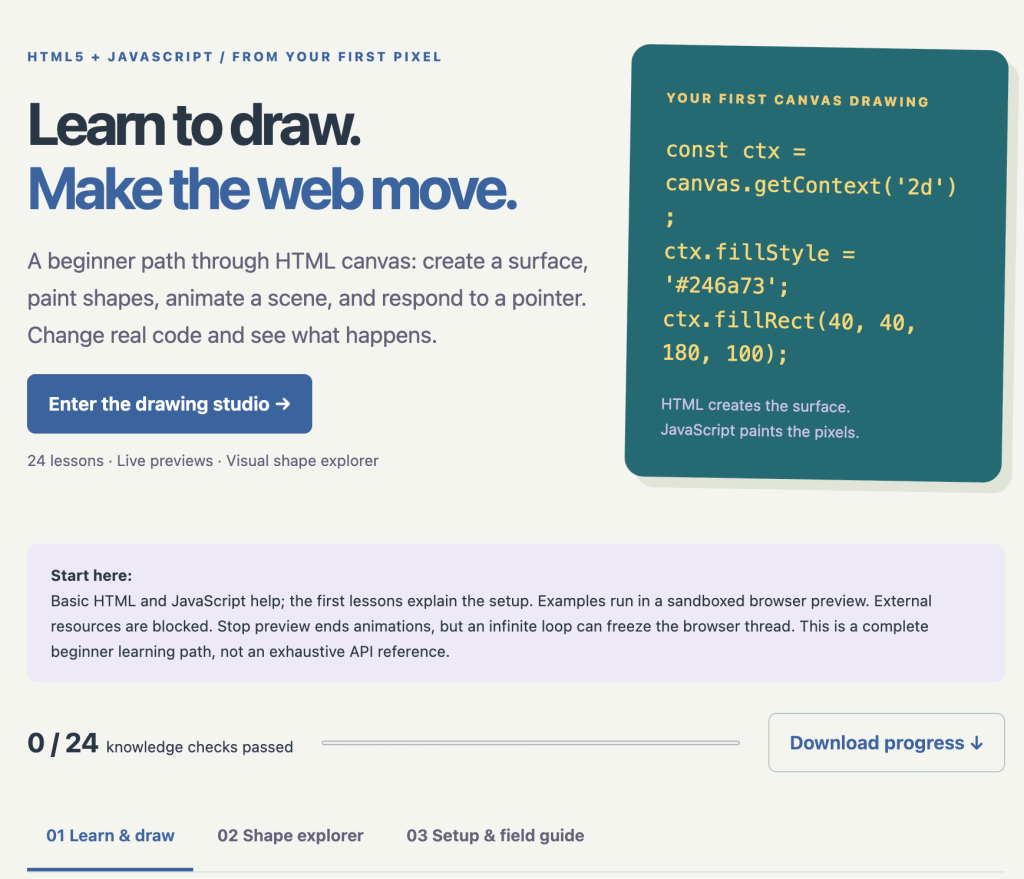
In this issue, we’ll explore how Canvas works, build several examples, learn the fundamentals of animation, and introduce a new free interactive learning resource:
HTML5 & Canvas Beginner Lab
https://discoveryvip.com/html5-canvas-lab/#studio
Whether you’re learning JavaScript for the first time or looking for your next creative coding project, this is a practical skill worth exploring.
1. What Is HTML5 Canvas?
HTML5 Canvas is a browser feature that lets JavaScript draw graphics directly onto a webpage.
Think of it as a digital drawing board.
HTML creates the drawing surface, and JavaScript controls what appears on it.
You can use Canvas to create:
- Interactive drawings and illustrations
- Animated graphics and visual effects
- Browser-based games
- Data visualizations and custom charts
- Particle systems and simulations
- Image editors and creative coding projects
Unlike ordinary HTML elements, which the browser manages individually, Canvas gives you control over the pixels being drawn.
This distinction is important.
HTML describes the structure of your webpage. Canvas lets your JavaScript create and redraw graphical scenes.
2. Your First Canvas Drawing
Let’s begin with something simple.
Create a file called index.html and add the following code:
<!DOCTYPE html>
<html lang="en">
<head>
  <meta charset="UTF-8">
  <title>My First Canvas</title>
</head>
<body>

<h1>My First Canvas Drawing</h1>

<canvas id="myCanvas"
        width="500"
        height="300"
        style="border:1px solid #ccc">
</canvas>

<script>
const canvas = document.getElementById("myCanvas");
const ctx = canvas.getContext("2d");

ctx.fillStyle = "blue";
ctx.fillRect(50, 50, 150, 100);
</script>

</body>
</html>
Open the file in your browser.
Congratulations! You’ve created your first Canvas drawing.
Understanding the code
Let’s break down the important parts.
Step 1: Create the Canvas
<canvas id="myCanvas"
        width="500"
        height="300">
</canvas>
This creates a drawing surface that is 500 pixels wide and 300 pixels tall.
Step 2: Access the Canvas with JavaScript
const canvas = document.getElementById("myCanvas");JavaScript finds the Canvas element in the document.
Step 3: Get the Drawing Context
const ctx = canvas.getContext("2d");The 2d context provides drawing commands for shapes, lines, text, images, and more.
Step 4: Choose a Color
ctx.fillStyle = "blue";This sets the color used to fill subsequent shapes.
Step 5: Draw a Rectangle
ctx.fillRect(50, 50, 150, 100);The four numbers represent:
- X position: 50
- Y position: 50
- Width: 150
- Height: 100
That’s all you need to begin drawing with JavaScript.
Try this experiment
Change the color from "blue" to "orange".
Then change the rectangle’s position and dimensions.
Notice how changing just a few numbers changes what appears on the screen.
This is one of the most effective ways to learn programming: change something, observe the result, and explain what happened.
3. Understanding the Canvas Coordinate System
Before creating more complex graphics, you need to understand coordinates.
Canvas uses an X and Y coordinate system.
The top-left corner is (0, 0).
- X increases as you move right.
- Y increases as you move down.
For example:
ctx.fillRect(0, 0, 50, 50);Draws a rectangle at the top-left corner.
ctx.fillRect(200, 100, 50, 50);Draws another rectangle 200 pixels from the left and 100 pixels from the top.
Understanding coordinates is essential for positioning objects, creating movement, and detecting interactions.
Learning challenge: Draw four differently colored squares in the four corners of your Canvas.
4. Drawing Circles with JavaScript
Rectangles are easy, but what about circles?
Canvas provides a method called arc().
Try this code after creating your Canvas and drawing context:
ctx.beginPath();

ctx.arc(
  250, 150,
  50,
  0,
  Math.PI * 2
);

ctx.fillStyle = "red";
ctx.fill();
Here’s what happens:
beginPath() starts a new drawing path.
arc() defines a circular arc using a center position, radius, starting angle, and ending angle.
Math.PI * 2 represents a full circle in radians.
fill() paints the circle.
Now experiment.
Change the radius from 50 to 80.
Change the center position.
Try drawing three circles with different colors.
Important concept: Canvas uses mathematical coordinates and angles. As your JavaScript skills improve, you can use these concepts to create increasingly sophisticated graphics.
5. Make Something Move: Your First Animation
Static drawings are interesting.
Animations are where Canvas becomes especially exciting.
The secret to animation is surprisingly simple:
- Clear the previous frame.
- Update an object’s position.
- Draw the object again.
- Repeat.
Modern browsers provide a function called requestAnimationFrame() that helps coordinate drawing with the browser’s rendering cycle.
Let’s create a moving square.
Use this JavaScript with the Canvas from our first example:
const canvas = document.getElementById("myCanvas");
const ctx = canvas.getContext("2d");

let x = 0;

function animate() {
  ctx.clearRect(
    0, 0,
    canvas.width,
    canvas.height
  );

  ctx.fillStyle = "purple";
  ctx.fillRect(x, 120, 50, 50);

  x += 2;

  if (x > canvas.width) {
    x = -50;
  }

  requestAnimationFrame(animate);
}

animate();
What’s happening?
We begin with a variable:
let x = 0;This stores the square’s horizontal position.
Inside the animation function, we clear the Canvas:
ctx.clearRect(0, 0, canvas.width, canvas.height);We draw the square at its current position:
ctx.fillRect(x, 120, 50, 50);Then we increase its position:
x += 2;Finally, we request another animation frame:
requestAnimationFrame(animate);The square appears to move because we repeatedly redraw it at new positions.
This example moves by a fixed amount per frame. For production animations, calculate movement using elapsed time so speed stays consistent across different refresh rates.
Your animation challenge
Try modifying the code to:
- Make the square move faster.
- Move the square vertically instead.
- Change its color.
- Make it bounce when it reaches an edge.
Each experiment introduces an important programming concept, including variables, conditions, functions, and loops.
6. Make Canvas Interactive with Mouse Events
Drawing and animation are only the beginning.
What happens when you combine Canvas with JavaScript events?
You can create interactive applications that respond to user input.
Let’s make a circle appear wherever someone clicks on the Canvas.
canvas.addEventListener("pointerdown", function(event) {

  const rect = canvas.getBoundingClientRect();

  const x = (event.clientX - rect.left)
    * canvas.width / rect.width;

  const y = (event.clientY - rect.top)
    * canvas.height / rect.height;

  ctx.beginPath();
  ctx.arc(x, y, 15, 0, Math.PI * 2);

  ctx.fillStyle = "teal";
  ctx.fill();
});
Every time you click or tap the Canvas, a new circle appears.
Why this matters
You’ve just combined three essential JavaScript skills:
DOM interaction: Accessing an HTML element.
Event handling: Responding to user actions.
Graphics programming: Drawing shapes dynamically.
The coordinate calculation converts the pointer position into Canvas coordinates, accounting for differences between the displayed size and the drawing surface.
These concepts are fundamental to interactive web development.
They’re also the foundation for drawing applications, interactive diagrams, and many browser games.
7. Five Important Canvas Concepts Every Beginner Should Know
Before moving on to larger projects, here are five concepts worth understanding.
1. Canvas drawings aren’t ordinary HTML elements.
When you draw a rectangle, the browser doesn’t create a separate DOM element for it. Your program needs to track objects and their positions if you want to manipulate them later.
2. Drawing order matters.
Objects drawn later can cover objects drawn earlier.
3. Canvas doesn’t automatically remember your scene as objects.
If you clear the Canvas, you need to redraw anything you want to remain visible.
4. Canvas resolution and CSS size are different.
Stretching a low-resolution drawing surface can make graphics appear blurry. For sharp graphics, account for the displayed size and device pixel ratio.
5. Animation is about updating state over time.
Smooth animation involves more than repeatedly drawing. It requires managing positions, elapsed time, and rendering efficiently.
Understanding these concepts will help you avoid common beginner mistakes.
8. Introducing the Free HTML5 & Canvas Beginner Lab
Learning becomes much easier when you can experiment rather than simply read about code.
That’s why I created the HTML5 & Canvas Beginner Lab at DiscoveryVIP.
It’s an interactive learning environment designed to help beginners understand graphics programming through hands-on practice.
https://discoveryvip.com/html5-canvas-lab/#studio
What’s included?
24 guided lessons
Progress from your first Canvas drawing to shapes, animation, and pointer interaction.
Live JavaScript previews
Modify working code examples and immediately see what changes.
Interactive shape explorer
Experiment with rectangle position, dimensions, rotation, and color using visual controls.
Knowledge checks
Test your understanding as you progress through the lessons.
Downloadable examples
Download runnable HTML examples to continue experimenting in your own editor.
Progress tracking and notes
Keep track of your learning, save notes locally, and export your progress.
Downloadable learning handbook
Review the material even when you’re not using the interactive studio.
The lab is intended as a complete beginner learning path rather than an exhaustive Canvas API reference.
You can start with basic HTML and JavaScript knowledge and build your skills one experiment at a time.
9. Three Beginner Projects to Build Next
Once you understand shapes, coordinates, and animation, you’re ready to start building.
Here are three projects that help reinforce what you’ve learned.
Project 1: Interactive Drawing Board
Goal: Create a simple drawing application.
Skills you’ll practice:
- Pointer events
- Coordinates
- Drawing circles and lines
- Managing colors
- Clearing the Canvas
Extra challenge: Add a color selector and a button to erase the drawing.
Project 2: Bouncing Ball Animation
Goal: Animate a ball moving around the screen.
Skills you’ll practice:
- Variables and functions
- Animation frames
- Conditional statements
- Boundary detection
- Updating positions
Extra challenge: Add multiple bouncing balls with different speeds.
Project 3: Simple Catch-the-Object Game
Goal: Create a game where players click moving objects to earn points.
Skills you’ll practice:
- Event handling
- Object positions
- Collision detection
- Score tracking
- Animation and game state
Extra challenge: Add a timer and progressively increase the difficulty.
Notice how these projects build on one another.
Each project introduces a few new skills while reinforcing the concepts you already understand.
That’s how effective learning should work.
10. A Better Way to Learn JavaScript: Experiment, Understand, Create
After more than two decades of developing software and teaching programming to over 3 million students, one principle continues to shape how I approach learning:
You don’t truly understand code just because you’ve read it. Understanding develops when you experiment, explain, and apply what you’ve learned.
When exploring Canvas, I recommend this simple learning process:
Explore: Run an example and observe what happens.
Predict: Before changing a value, predict the result.
Experiment: Modify the code and compare the output with your prediction.
Understand: Explain why the change produced that result.
Create: Use the concept in a small project of your own.
This approach is closely aligned with my Vibe Learning Framework, which emphasizes curiosity, exploration, understanding, practice, feedback, and creation.
You don’t need to memorize every Canvas method.
You need to understand the concepts well enough to build something meaningful.
11. Your Challenge: Create Something in 20 Minutes
Here’s a simple exercise to complete after reading this newsletter.
First 5 minutes: Create a Canvas and draw three shapes.
Next 5 minutes: Experiment with colors, positions, and sizes.
Next 5 minutes: Animate one of the shapes.
Final 5 minutes: Add an interaction or another creative feature.
By the end, you’ll have created a small interactive JavaScript project.
It doesn’t need to be perfect.
The goal is to move from understanding examples to creating something yourself.
And if you get stuck, use the HTML5 Canvas Lab to explore the relevant lesson and experiment with working examples.
Final Thoughts: JavaScript Is More Than Webpage Interactions
Many developers begin learning JavaScript through variables, functions, buttons, and forms.
Those are essential skills.
But JavaScript can do so much more.
With HTML5 Canvas, you can bring ideas to life visually.
You can create games, simulations, animations, drawing applications, and interactive experiences—all within a web browser.
And the best part?
You can begin with a single rectangle.
From there, every new concept expands what you can create.
Start Learning with the HTML5 & Canvas Beginner Lab
Explore all 24 lessons, experiment with the live examples, and build your first interactive graphics project.
Free interactive guide:
https://discoveryvip.com/html5-canvas-lab/#studio
Subscribe to Learn to Code: Tips & Lessons for more practical JavaScript tutorials, coding exercises, and free learning resources.
https://www.linkedin.com/newsletters/learn-to-code-tips-lessons-6883954813151842304
Let’s Discuss
Have you ever built anything using HTML5 Canvas?
And if you’re just getting started, which project would you most like to create first: a drawing app, an animation, or a browser game?
Share your ideas in the comments. I’d love to hear what you’re building.
Laurence Lars Svekis
Web Developer | Author | Google Developer Expert | Online Educator
Helping over 3 million students learn coding, web development, and modern technology.
#JavaScript #HTML5 #CanvasAPI #WebDevelopment #LearnToCode #Programming #CodingForBeginners #JavaScriptTutorial #FrontendDevelopment #CreativeCoding #WebDesign #HTMLCanvas #GameDevelopment #CodingEducation #LearnJavaScript #InteractiveWeb #DeveloperCommunity #DiscoveryVIP #VibeLearning #100DaysOfCode